Attorneys spend more time at their desks than almost anywhere else. Document review, research, drafting, email, case management, billing — the vast majority of legal work happens within arm's reach of your keyboard. Despite this, most attorneys use whatever hardware their firm provided when they started, arranged however it landed when they moved in, with cable management that would make an electrician weep.
Your desk setup isn't a vanity project. It's infrastructure. The right monitor, the right keyboard position, the right lighting, and the right organizational system measurably affect how quickly you work, how accurately you work, and how your body feels at the end of a 10-hour day. A deliberate desk setup pays for itself in productivity gains within weeks.
This guide to the lawyer's desk setup covers the hardware, layout, and organizational approach that works specifically for legal work — not generic "productivity desk setup" advice borrowed from a tech YouTuber, but recommendations informed by how attorneys actually use their workspace.
The Monitor: The Single Biggest Productivity Upgrade
If you're working on a single laptop screen, upgrading your monitor situation is the highest-impact change you can make to your desk. Legal work is inherently multi-document: you're reading a contract while drafting a memo, reviewing case law while writing a brief, comparing two versions of an agreement side by side. On a single 13-15 inch laptop screen, this means constant window switching — and every switch costs you 10-15 seconds of refocusing.
Dual Monitors vs. Ultrawide
Dual monitors (two 24-27 inch screens): The traditional attorney setup. One screen for the document you're working on, one for reference material, email, or your practice management system. This works well and is the setup most attorneys end up with. Position them at a slight angle so you can see both without significant head turning.
Ultrawide monitor (34-40 inches): A single large curved screen that provides the equivalent of two monitors without the bezel (the frame) dividing them. An ultrawide lets you tile windows side by side seamlessly. Many attorneys who try an ultrawide prefer it to dual monitors because the single unbroken desktop feels more natural and eliminates the visual interruption of the bezel.
The recommendation: Either works. If you're starting fresh, a 34-inch ultrawide curved monitor offers the most flexibility. If you already have one good monitor, adding a second is the most cost-effective upgrade. Avoid monitors smaller than 24 inches for your primary screen — they don't provide enough space for comfortable document work.
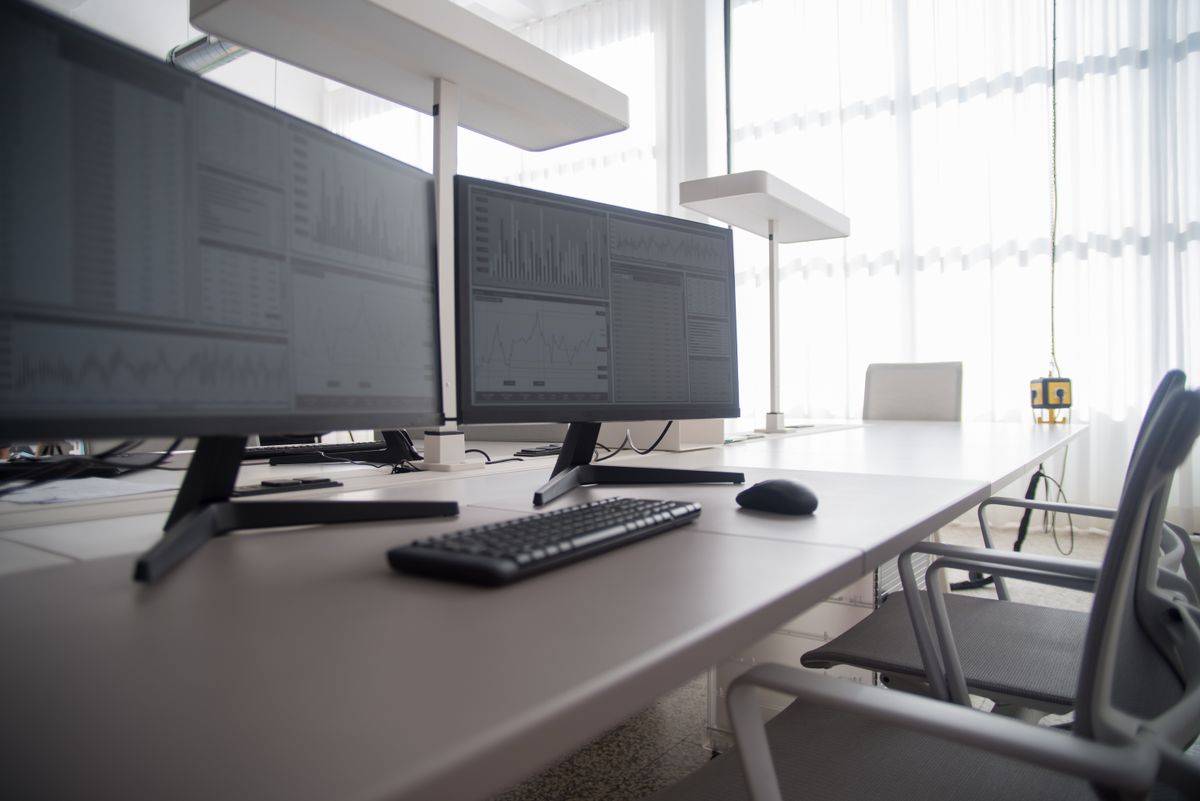
Two screens, an external keyboard, and a clear surface: the working core of an attorney's desk. Everything else in this guide builds on this.
Resolution Matters for Document Work
Attorneys read text all day. Resolution directly affects how sharp that text appears and how quickly you can read it. A 4K (3840x2160) resolution at 27 inches produces text that's nearly as sharp as a printed page. A standard 1080p (1920x1080) resolution at the same size produces visibly fuzzier text that's more fatiguing to read over long periods.
For document-intensive work, invest in the highest resolution your budget allows. The difference between reading contracts on a 1080p monitor and a 4K monitor over an 8-hour day is significant — less eye strain, fewer reading errors, and less fatigue.
Monitor Position
Height: The top of the screen should be at or slightly below eye level. This means most monitors need to be raised from their factory position. A monitor arm (highly recommended) provides infinite adjustability. A simple monitor stand or even a stack of books works if the arm isn't in the budget.
Distance: The screen should be approximately an arm's length away (20-26 inches from your eyes). Too close causes eye strain. Too far forces you to lean forward.
Angle: Tilt the monitor back very slightly (5-10 degrees) so the screen surface is roughly perpendicular to your line of sight. This reduces glare and provides the most comfortable viewing angle.
Tip
A monitor arm is one of the best desk investments you can make. It frees up the desk space currently occupied by the monitor stand, allows precise height and angle adjustment, and lets you push the monitor out of the way entirely when you need the desk surface for physical documents. Basic gas-spring monitor arms start around $30-$40 and transform your desk's usability.
Keyboard and Mouse: Ergonomics for the Long Haul
Keyboard
Attorneys type a lot. Briefs, motions, correspondence, case notes, emails — the volume of text output is substantial. Your keyboard should be comfortable for sustained typing and positioned correctly to prevent strain.
Key considerations:
Full-size vs. compact: A full-size keyboard with a number pad is standard but pushes your mouse further to the right, which can cause shoulder strain over time. A tenkeyless (TKL) or compact keyboard brings your mouse closer to center, reducing the reach. If you rarely use the number pad, a compact keyboard improves your ergonomic position.
Mechanical vs. membrane: Mechanical keyboards provide tactile feedback that many typists prefer, and the key switches last significantly longer than membrane keyboards. They are louder, however — a consideration if you share an office or are frequently on phone calls. Mechanical keyboards with "silent" switches provide the tactile feel without the noise.
Ergonomic split keyboards: If you experience wrist or forearm discomfort, a split keyboard (one that angles the two halves outward) places your wrists in a more natural position. There's a learning curve, but the ergonomic benefit is real.
Position: Your keyboard should sit at a height where your elbows are at approximately 90 degrees when typing, with your wrists in a neutral (not bent upward) position. If your desk is too high for this — and most standard desks are — a keyboard tray that mounts under the desk brings the keyboard to the correct height.
Mouse
A standard mouse works for most attorneys, but if you spend significant time in document review, spreadsheets, or any application that requires precise pointing and clicking, an ergonomic mouse reduces strain.
Vertical mice position your hand in a handshake orientation rather than the palm-down position of a standard mouse. This reduces wrist rotation strain. They feel strange for about a week, then feel natural.
Trackballs keep your arm stationary and move the cursor by rolling a ball with your thumb or fingers. Some attorneys swear by them for reducing arm movement fatigue.
Wireless vs. wired: Wireless eliminates cable clutter. Modern wireless mice have negligible latency. Use wireless unless you have a specific reason to prefer wired.
Lighting: What Your Eyes Need
Office lighting is almost always wrong for desk work. Overhead fluorescent or LED panel lights are designed to illuminate a room evenly, not to illuminate the specific area where you're working. The result is often either too much light (creating glare on your screen) or uneven light (your documents are in shadow while the room is bright).
Monitor Lighting
Reduce glare. Position your monitor so that windows and overhead lights are not reflected on the screen. The ideal position has windows to the side, not behind you (creates glare on screen) or in front of you (creates a backlight that makes the screen harder to read).
Match ambient brightness. Your monitor should be approximately the same brightness as your surroundings. A bright monitor in a dark room or a dim monitor in a bright room both cause eye strain.
Use night shift/warm mode in the evening. Blue light from screens interferes with sleep. If you work in the evening, enable your operating system's warm/night mode after sundown.
Task Lighting
A desk lamp positioned to illuminate your physical documents without creating glare on your screen is essential if you work with paper. An adjustable LED desk lamp with multiple brightness levels gives you control over your lighting conditions throughout the day.
Monitor light bars mount on top of your monitor and cast light downward onto your desk surface without illuminating (or reflecting off) the screen. These are excellent for attorneys who frequently reference physical documents while working on screen.
Document Handling at Your Desk
Legal work involves paper — less than it used to, but still significant. Your desk setup needs to accommodate physical documents without letting them take over your workspace.
Document Stand
If you frequently type from physical documents — transcribing notes, entering data from forms, referencing a printed contract while drafting — a document stand positioned beside your monitor keeps the document at eye level and reduces the neck strain of looking down at a flat document repeatedly.
Filing and Organization
Active files (matters you're currently working on) should be within arm's reach. A desktop file sorter, a small lateral file, or stacking trays keep active matters accessible without spreading them across your desk surface.
Processing inbox. A single physical inbox (tray or basket) for incoming paper — mail, documents from colleagues, items to review — prevents paper from scattering across your desk. Process the inbox daily: file it, action it, or discard it.
The clear desk rule. At the end of each day, your desk surface should have nothing on it except your monitor, keyboard, mouse, and phone. Everything else goes into its designated storage location. This isn't about aesthetics — it's about ensuring that no document gets buried under other documents, which in a law practice can mean a missed deadline or a lost filing.
Warning
Client documents left on an open desk surface are a confidentiality concern, especially in shared offices or spaces where cleaning crews have after-hours access. File all client documents when you leave your desk, even briefly. A locking desk drawer for active matter files is a practical safeguard.
Cable Management
Cables are the silent enemy of a productive desk setup. A tangle of power cables, USB cables, monitor cables, and charging cables creates visual clutter, makes cleaning difficult, collects dust, and occasionally pulls something off your desk when you move the wrong cable.
Solutions, from simple to thorough:
- Cable clips stick to the back of your desk and hold individual cables in place. Cheap and effective for keeping charging cables accessible.
- Cable trays mount under your desk and hold all cables in a single channel. This gets cables off the floor and out of sight.
- Cable sleeves bundle multiple cables into a single wrapped tube. Useful for the run from your desk to the power outlet.
- Velcro ties beat zip ties for cable management because you can add, remove, and adjust cables without cutting anything.
The USB hub: A single USB hub or dock on your desk surface provides all your connections (monitor, keyboard, mouse, phone charging, external drive) through one cable to your laptop. When you need to take your laptop to a meeting or home, you unplug one cable instead of six.
The Phone Situation
How you handle phone calls at your desk affects your productivity and your physical comfort.
Headset vs. handset: If you take more than a few calls per day, a wireless headset is a significant upgrade over a desk phone handset. You can type, access files, and take notes while talking — and you avoid the neck strain of cradling a handset between your ear and shoulder.
Speakerphone: Fine for calls when you're alone in your office with the door closed. Not appropriate for client calls in shared spaces (confidentiality) or for calls where audio quality matters (the caller will hear room echo).
Cell phone placement: Your personal cell phone is a distraction device. If it sits face-up on your desk, every notification pulls your attention. Place it face-down or in a drawer during focused work periods. If you need your phone for client calls, use a dedicated stand that keeps it upright and accessible without it being a constant visual presence.
The Standing Desk Question
Standing desks — or more accurately, sit-stand desks that adjust between sitting and standing height — have become mainstream. The health argument is well-established: prolonged sitting is associated with various health risks, and alternating between sitting and standing throughout the day reduces those risks.
For attorneys, the practical consideration is whether your work is compatible with standing. Document review, research, and drafting all work well at standing height. Phone calls and video meetings work well. Physical document signing and detailed markup work better sitting.
If you're considering a sit-stand desk:
- Electric adjustment is worth the premium over manual crank — you'll change positions more often if it's effortless
- Ensure the desk is deep enough for your monitor at a comfortable distance (at least 24 inches, preferably 30)
- An anti-fatigue mat is essential for standing periods — standing on a hard floor is uncomfortable quickly
- Expect a 2-3 week adjustment period before standing for extended periods feels natural
If a new desk isn't in the budget, a desktop converter (a unit that sits on your existing desk and raises your keyboard and monitor to standing height) is a lower-cost alternative.
Putting It Together: The Attorney Desk Setup Checklist
Monitors:
- At least one 27-inch monitor (4K preferred) or 34-inch ultrawide
- Monitor at eye level (arm or stand)
- Screen approximately arm's length away
- No glare from windows or overhead lights
Input Devices:
- Keyboard at elbow height (90-degree angle)
- Mouse close to keyboard (no reaching)
- Wrist rest if using a standard keyboard
Lighting:
- Task lamp or monitor light bar for document work
- No direct light source reflected on screen
- Monitor brightness matched to room ambient light
Organization:
- Active files within arm's reach
- Single processing inbox for incoming paper
- Document stand if frequently typing from physical documents
- Clear desk at end of each day
Cables and Connectivity:
- Cable management solution in place
- USB hub or dock for single-cable laptop connection
- Wireless headset for phone calls
Ergonomics:
- Chair adjusted so feet are flat on floor
- Back support from chair (lumbar area)
- Monitor, keyboard, and chair heights coordinated
You don't need to buy everything at once. Start with the monitor upgrade if you're on a single laptop screen — that alone will noticeably improve your daily work experience. Add a monitor arm and proper cable management next. Round out the setup with lighting and ergonomic refinements as budget allows.
Every improvement you make to your desk setup compounds over thousands of hours of use. An investment of a few hundred dollars in the right hardware — spread across the years you'll use it — is one of the highest-ROI decisions you can make for your practice.
Frequently Asked Questions
What monitor is best for a lawyer's desk?+
For legal work, prioritize screen space and resolution over refresh rate or gaming features. Two options work best: dual 24-27 inch monitors (one for the document you're drafting, one for reference material), or a single 34-40 inch ultrawide that tiles documents side by side without a bezel down the middle. Choose at least a QHD (1440p) resolution so small text in contracts and PDFs stays sharp, which reduces eye strain over a long day of document review.
Do attorneys really need dual monitors?+
For most attorneys, yes. Legal work is inherently multi-document — you're reading case law while drafting a brief, or comparing two versions of an agreement. On a single laptop screen that means constant window switching, and every switch costs 10-15 seconds of refocusing. A second monitor (or an ultrawide that acts like two) eliminates that friction and is the single highest-impact upgrade you can make to a desk setup.
What is the best desk setup for a law student?+
A law student's setup follows the same priorities as a practicing attorney's, scaled to budget: a single external monitor added to a laptop is the biggest win for reading long cases and casebook PDFs, plus an external keyboard and mouse positioned for good posture during long study sessions. A document stand for physical casebooks and simple task lighting round it out. You don't need an expensive desk — you need screen space and ergonomics that hold up over hours of reading.
Should a lawyer use a standing desk?+
A standing desk is worth it if you'll actually alternate between sitting and standing, since the health benefit comes from changing position, not standing all day. For attorneys who spend eight or more hours at a desk, a sit-stand desk (or a converter placed on an existing desk) lets you shift posture through long drafting and review sessions. If you know you'll leave it in one position permanently, a good fixed-height desk at the correct ergonomic height is the more sensible spend.
What are the best types of desks for a lawyer's office?+
Judge a desk by what legal work demands of it rather than by style. You need enough surface area for one or two monitors plus physical documents spread out beside them, a height that's ergonomically correct for hours of typing (or a sit-stand mechanism if you'll alternate positions), somewhere to route cables so the surface stays clear, and ideally a locking drawer for client documents. A modest desk that meets those four requirements outperforms an imposing executive desk that doesn't — the desk is infrastructure for document work, not a status prop.
Written by the ModernLawOffice Team under our editorial standards. This guide is practice-management information, not legal advice. Check the rules in your jurisdiction with your state bar. Spotted an error? Tell us.